📢 Important Notice — Please Read First
Dear Customer, I want to be fully transparent with you — this issue was not caused by us. It was an official cPanel vulnerability that affected servers on a global scale.
After thorough research, we found that this critical issue caused millions of servers worldwide to completely crash, and many companies suffered total data loss due to hacking incidents directly linked to this vulnerability.
✅ The good news — your server is safe.
Only 1 day of data has been disrupted. This is significantly better compared to companies that lost everything. You are in a much better position than most affected users. Thank you for your patience and understanding. We are here to support you 24/7. 🙏
Only 1 day of data has been disrupted. This is significantly better compared to companies that lost everything. You are in a much better position than most affected users. Thank you for your patience and understanding. We are here to support you 24/7. 🙏
⚠️ Important: Please follow all steps correctly to avoid any data issues.
1
Login to cPanel
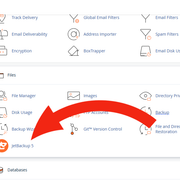
Login to your cPanel account. Scroll down or search for JetBackup 5 and click on it.
 🔍 Enlarge
2
Open Database Section
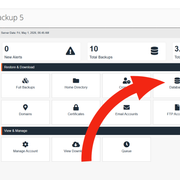
Once JetBackup opens, click on Databases to continue.
 🔍 Enlarge
3
Restore Database
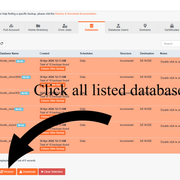
Select all database files and click on the Restore button.
 🔍 Enlarge
4
Go to Database Users
Go back to JetBackup dashboard and click on Database Users.
 🔍 Enlarge
5
Restore Database Users
Select all database user files and click on the Restore button.
 🔍 Enlarge
6
Completed
✅ Your database has been successfully restored.
Please verify your website and ensure everything is working properly.
Please verify your website and ensure everything is working properly.